

Prerequisites
- Google Chrome browser
- Yutori API key
Installation
- Download the n1 Browser Extension
- Unzip the file to a folder on your computer
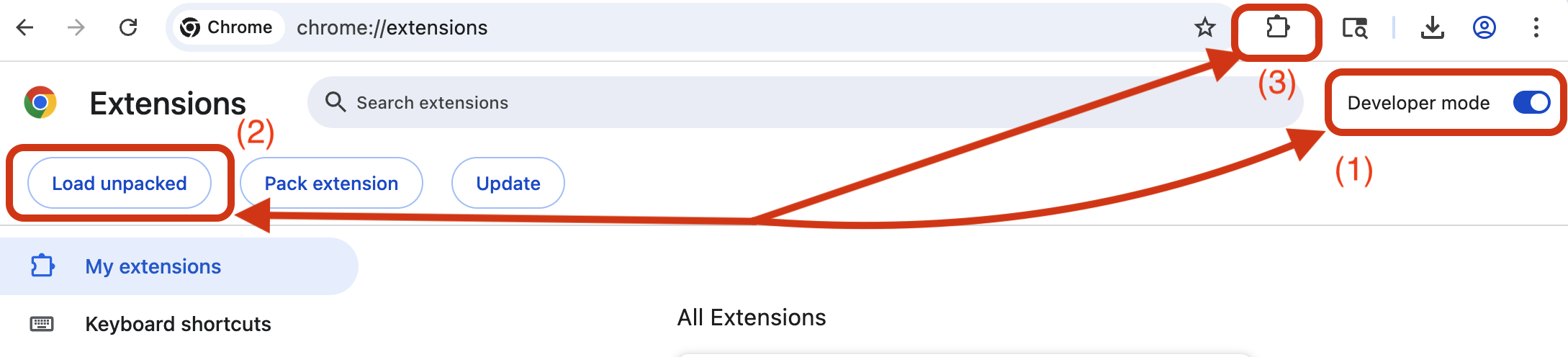
- Open Chrome and navigate to
chrome://extensions/ - Enable Developer mode (toggle in the top right corner)
- Click Load unpacked (button on the top left corner)
- Select the unzipped
n1-browser-extensionfolder - The extension icon should appear in your toolbar
- If it doesn’t appear, click the puzzle piece icon to see your list of extensions and pin the Yutori n1 Agent Browser extension to your toolbar
Configure Your API Key
- Click the n1 extension icon in your Chrome toolbar
- The settings page will automatically open the first time launching the extension
- To change settings afterwards, click the gear icon to open settings
- Enter your Yutori API key
- Click Save
How to Use
- Navigate to any webpage
- Click the n1 extension icon
- Type your task in natural language, for example:
On AWS Console webpage
Create a new IAM role called “api-test” with API Gateway use-case and set the env tag to “dev”
On Hugging Face webpage
Create a new access token called “test-token” and give it only read access
- Press Enter to submit task
- Watch the agent work—it will show its thoughts and actions in real-time
- You can also switch to a different tab and let the task run in the background
- Multiple tasks can be launched in parallel across multiple tabs
- Click Stop at any time to pause execution
- Stopped or completed tasks will provide a summary of its progress and what was accomplished